Guides · 8 min read
Why ElkTop Auto Apply Works Only at AliExpress Checkout
ElkTop 2.1.1 has two coupon surfaces. Apply and Auto Apply Best Coupons appear only on the AliExpress confirm-order page; AliExpress product pages have no coupon panel, and supported sites such as DHgate show Smart Coupons with Copy—not Auto Apply.
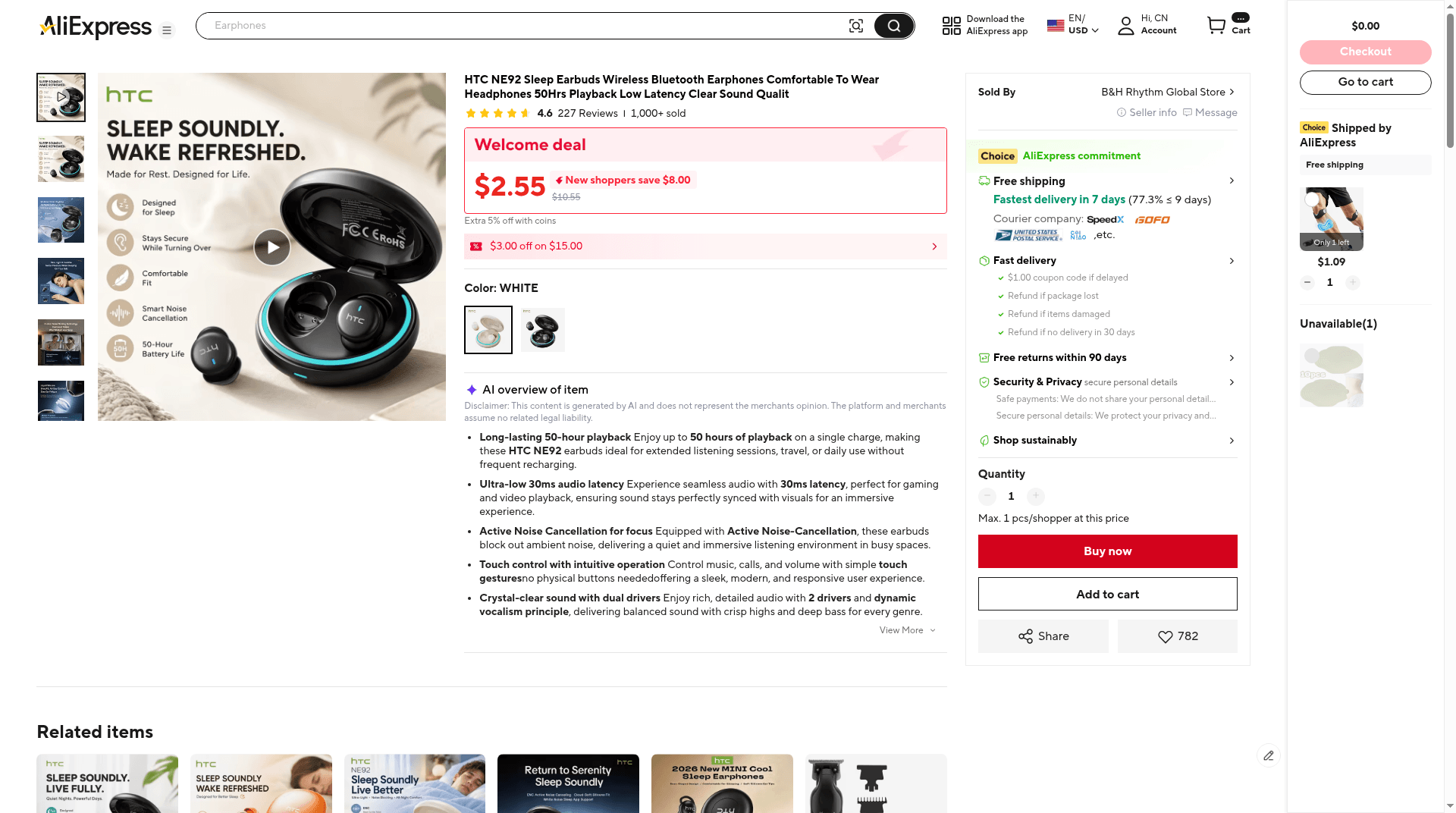
If you install ElkTop and start on an AliExpress product page, it is reasonable to look for a purple Apply or Auto Apply Best Coupons button in the corner. In version 2.1.1, that button is not supposed to be there. The extension has two different coupon surfaces, and Auto Apply is wired to only one of them: the AliExpress confirm-order page.
This article is about that split. It is not a rewrite of the install walkthrough, not a live code list, and not a claim that a missing panel means ElkTop failed to load. It explains why Apply and Auto Apply Best Coupons appear only at AliExpress checkout, why AliExpress product pages have no on-page coupon panel, and why a supported site such as DHgate can show a Smart Coupons panel with Copy even while you are still browsing.
ElkTop 2.1.1 mounts two coupon surfaces—not one panel everywhere
The content script can run on almost every site except elktop.com and localhost. What you actually see depends on the host and the path. On an AliExpress domain, the Auto Apply panel is reserved for the confirm-order URL (`/p/trade/confirm.html`). Anywhere else on AliExpress, including product listings, ElkTop does not inject a coupon panel. On a non-AliExpress site that the extension recognizes, and only when coupon data exists for that site, it can show a generic Smart Coupons panel instead.
- AliExpress checkout (`/p/trade/confirm.html`): AliExpress Assistant / Smart coupon optimizer, with region tabs, a purple Apply button on each card, and Auto Apply Best Coupons in the footer.
- AliExpress but not checkout: no on-page coupon panel.
- A matched site such as DHgate, when coupons exist: Smart Coupons, with Coupon Codes cards and a purple Copy button—not Apply, and not Auto Apply.
- The toolbar popup on an AliExpress tab is AliExpress Coins (Total Coins, Coin Value, Recent Records). It is a different surface, not the coupon list.
Those are separate UIs that happen to share the same purple (#a002ff) glass style. If you treat every ElkTop overlay as “the Auto Apply tool,” a DHgate Copy button or a quiet AliExpress product page will look like a bug.
Why Auto Apply is reserved for AliExpress checkout
Auto Apply Best Coupons is not a generic “try codes on whatever page I am viewing” action. On the confirm-order page, AliExpress already exposes a promo-code field and an order Summary. ElkTop can place a code in that field, test eligible offers for the selected region in sequence, and then show the result. That is why the panel’s hero copy says it will “test all available promotional codes for your region and apply the best savings automatically.” The testing needs a checkout to write into.
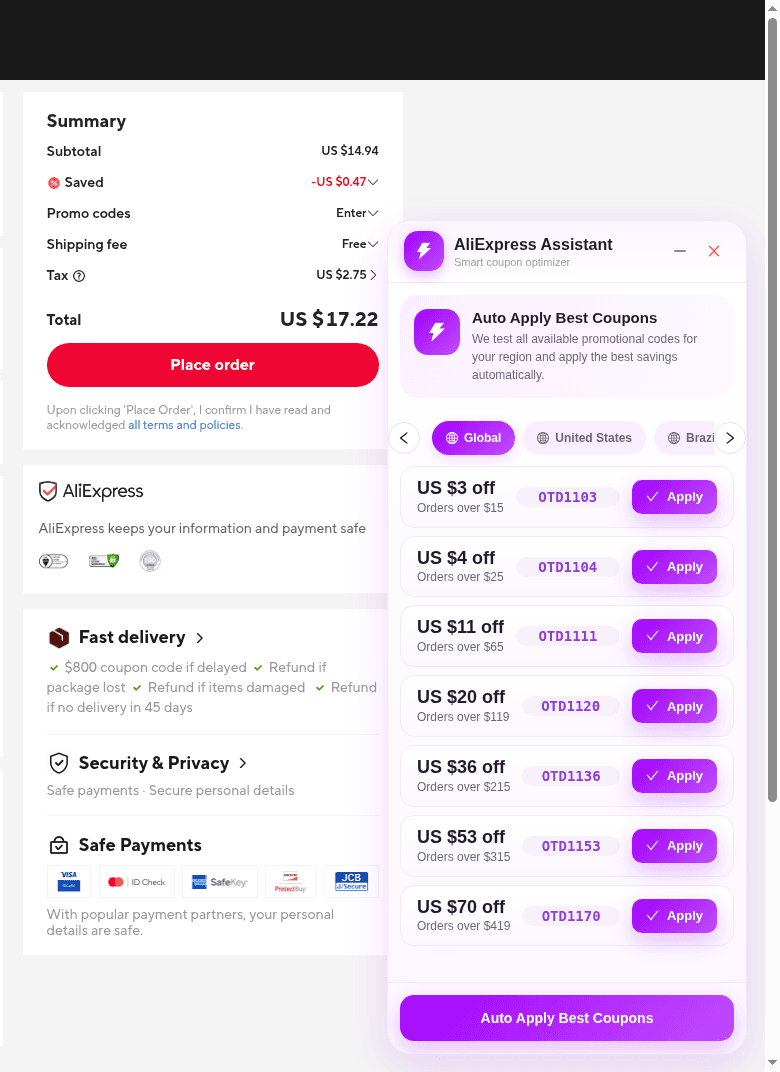
The checkout panel is built around that job. Region tabs such as Global, United States, and Brazil group the lists. Each card can show discount text, a minimum-order condition, a code chip, and Apply—which attempts that one code in the AliExpress promo field. The footer button, Auto Apply Best Coupons, runs a pass across eligible codes for the selected region. The panel can also be minimized if you need to read the Summary behind it.
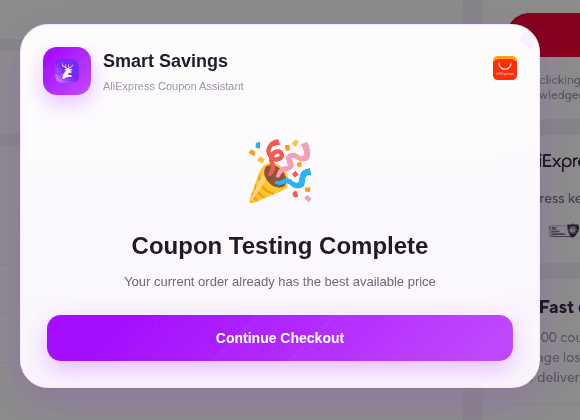
When Auto Apply finishes, ElkTop can open a Smart Savings modal subtitled AliExpress Coupon Assistant. While it is working, codes can move through states such as Testing, Applied, Invalid, and Pending. When it is done, the modal can report Coupon Testing Complete and either that one or more coupons were applied or that “Your current order already has the best available price,” then offer Continue Checkout. Continue Checkout closes the result modal; it is not a payment instruction. The AliExpress Summary is still the source of truth for Saved, shipping, tax, and Total.
Why AliExpress product pages have no coupon panel
On a product listing, there is no confirm-order promo field for ElkTop to test. Version 2.1.1 therefore does not render AliExpress Assistant there. You can shop, compare sellers, and add items as usual. Native AliExpress chrome—Welcome deal pricing, coins hints, or site coupons—belongs to AliExpress, not to ElkTop.
That is also why clicking the toolbar icon on an AliExpress tab does not open the coupon list. The popup title is AliExpress Coins, with Total Coins, Coin Value, and Recent Records (or No records yet). Coins and checkout coupons are different surfaces. If you are waiting on a product page or in that popup for Auto Apply Best Coupons, you are looking in the wrong place; open the confirm-order page instead, and confirm the URL path is `/p/trade/confirm.html`.
On DHgate, Smart Coupons can appear early—and still is not Auto Apply
The contrast is sharp once you leave AliExpress. On a matched site such as DHgate, ElkTop can show Smart Coupons while you are still on the homepage or a product page. In the 2026-11-14 English captures, the same style of floating panel sat on both a DHgate homepage and a jewelry product listing. If you just came from AliExpress, that early appearance is exactly what makes people expect a purple Apply or Auto Apply Best Coupons button to work there too.
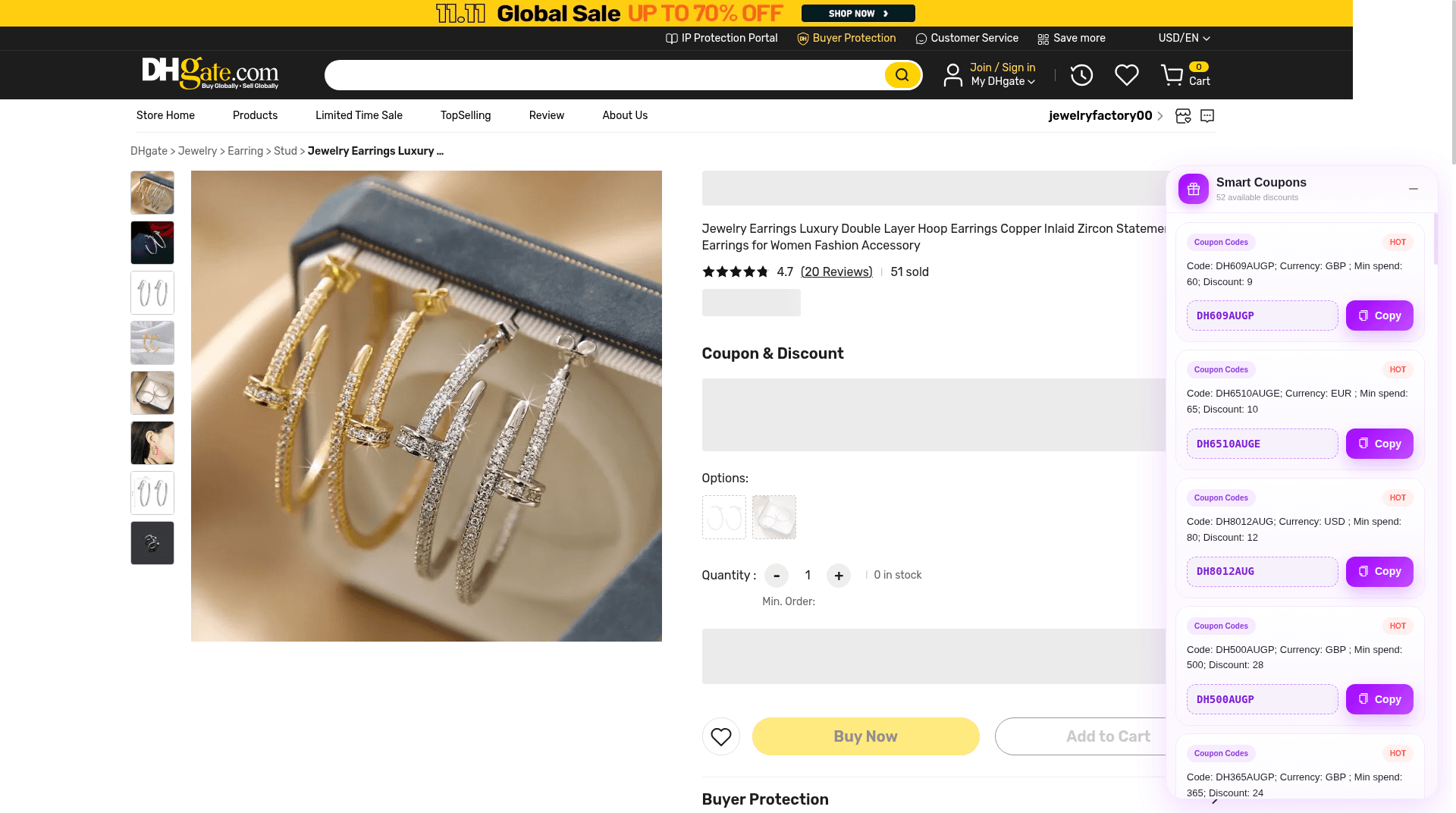
Read the chrome, not the color. The DHgate panel is titled Smart Coupons, with a gift icon and a count such as “52 available discounts.” It does not say AliExpress Assistant or Smart coupon optimizer. There are no region tabs, no Apply buttons, no Auto Apply Best Coupons footer, and no Smart Savings testing modal. Each Coupon Codes card has conditions, a code chip, an optional HOT tag, and a purple Copy button. Copy places the string on your clipboard so you can paste it into DHgate’s own field. ElkTop is not auto-filling or auto-testing that field the way it does on AliExpress checkout.
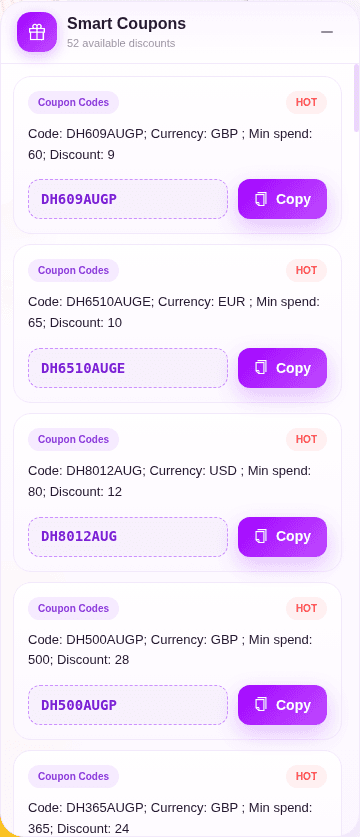
Two more details follow from how that list is built. First, the offer set is site-matched weekly coupon data, not a per-product auto-optimizer. In the 2026-11-14 session, the homepage and a product page showed the same kind of list and the same “52 available discounts” count. Seeing the panel on a listing does not mean every code is valid for that item. Second, one list can mix currencies. The capture included GBP, EUR, and USD codes side by side—including on a page whose DHgate header was set to USD/EN. A GBP minimum and a USD cart are not the same offer. Read the currency and minimum spend on the card, copy only what matches how you are checking out, and verify the total on DHgate’s own checkout.
- Copy is clipboard-only. It is not Apply, and it is not Auto Apply Best Coupons.
- Match the card’s currency and minimum spend to your cart before you paste.
- Codes and the “52 available discounts” count from 2026-11-14 (for example DH609AUGP, DH6510AUGE, DH8012AUG) are dated examples, not a live guarantee.
- When there is no usable code, the same Smart Coupons panel can show Selected Discounts cards instead of a Copy action.
- The panel can be minimized to a gift-icon badge that shows the count.
A practical map before you assume the extension is broken
- On an AliExpress product page with no purple overlay: keep shopping, then go to confirm order. Do not hunt the listing for Auto Apply.
- On AliExpress confirm order (`/p/trade/confirm.html`): use Apply or Auto Apply Best Coupons, then read Smart Savings and the AliExpress Summary.
- On a supported site such as DHgate, if you see Smart Coupons and Copy: that surface is working as designed. Paste and verify in the merchant’s checkout.
- If Smart Coupons does not appear on a non-AliExpress site, the page may not be a matched host, or there may be no coupon data to show. That is not a cue to look for Auto Apply.
For the step-by-step AliExpress click path, use the how-to guide. For US promo-code pitfalls, use the US shoppers guide. For why a Global or WW label can still miss a United States delivery, use the delivery-region guide. This piece exists so those workflows start on the right surface: Auto Apply at AliExpress checkout, Copy on sites such as DHgate, and no coupon panel on the AliExpress listing.
Install ElkTop 2.1.1 from the Chrome Web Store, open a low-stakes AliExpress confirm-order page, and look for AliExpress Assistant with Apply and Auto Apply Best Coupons. Then visit a supported site such as DHgate and confirm that Smart Coupons offers Copy instead. Once you can tell those two surfaces apart, the missing product-page button stops looking like a failure.
Install ElkTop
Free on the Chrome Web Store—find and apply AliExpress coupons while you shop.