Guides · 8 min read
How to Use ElkTop on AliExpress Checkout (Apply & Auto Apply)
Install ElkTop 2.1.1 from the Chrome Web Store, shop AliExpress as usual, open the confirm-order page for AliExpress Assistant, use Apply or Auto Apply Best Coupons, then verify the order summary before you pay.
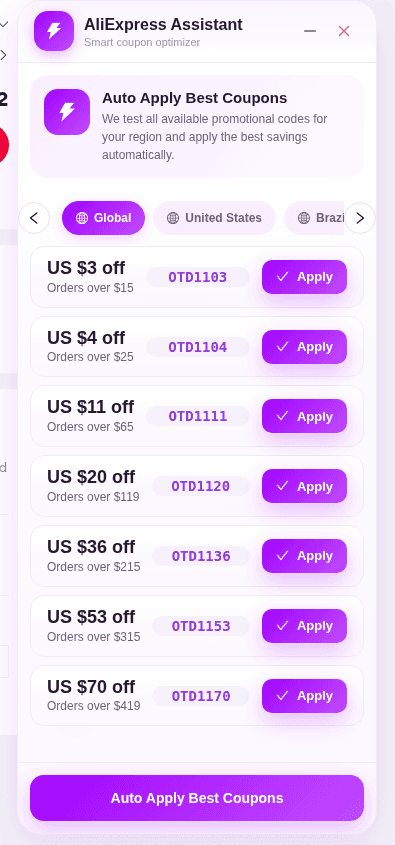
ElkTop is a free Chrome extension for finding and applying AliExpress coupons at the right moment in checkout—not a floating coupon tray on every product page. This walkthrough matches the English UI of ElkTop 2.1.1 as captured on live sites on 2026-11-14: install, browse normally, open the AliExpress confirm-order page, use Apply or Auto Apply Best Coupons, read the Smart Savings result, and confirm the AliExpress order summary before you pay.
Codes, dollar-off amounts, and “N available discounts” counts shown in the screenshots are capture-date examples only. They are not evergreen working offers. Never place an order or enter payment details because a guide told you to—stop at verification.
What ElkTop actually shows (and where)
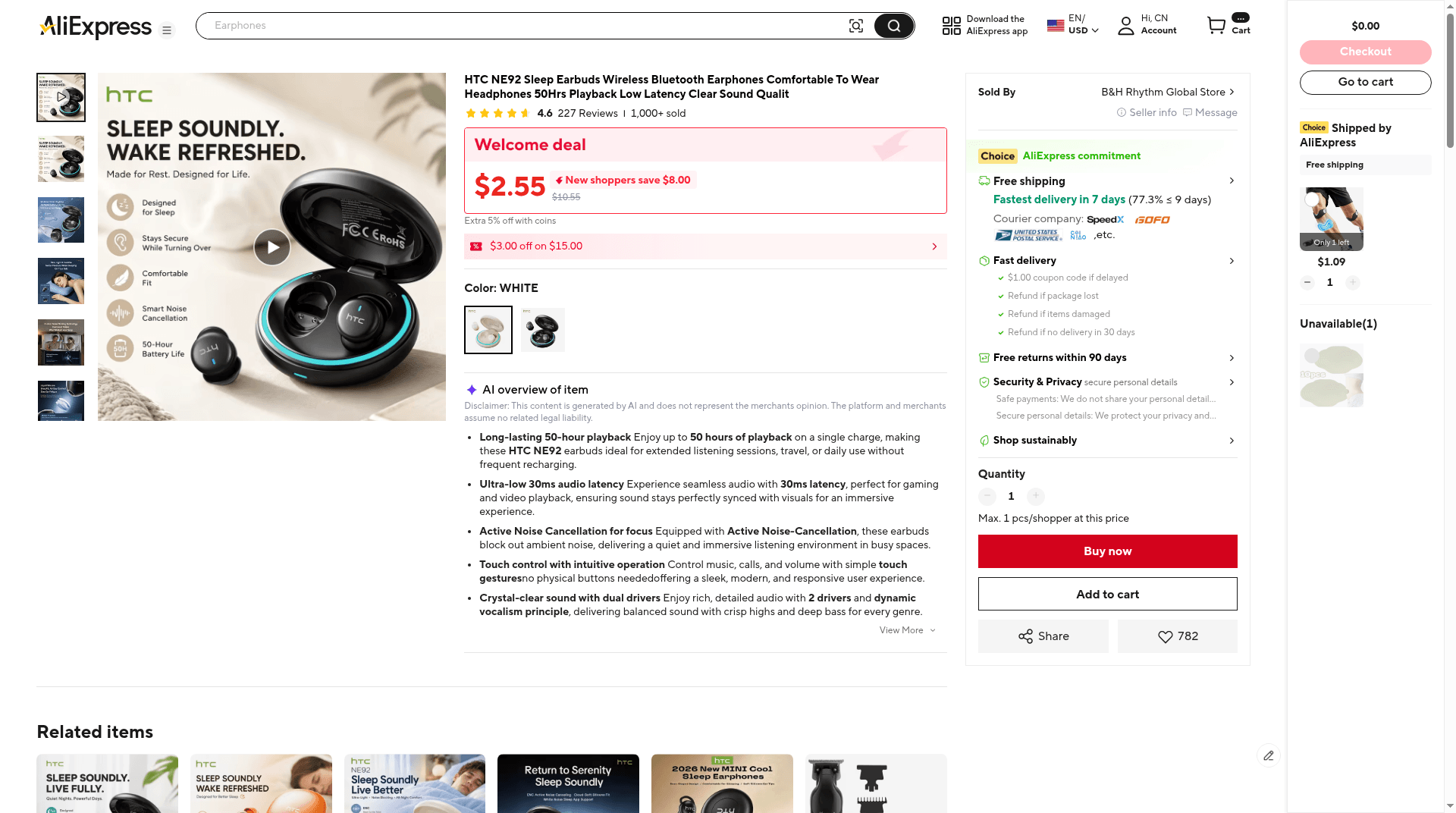
- AliExpress product pages: no ElkTop coupon overlay. Shop the native listing as usual.
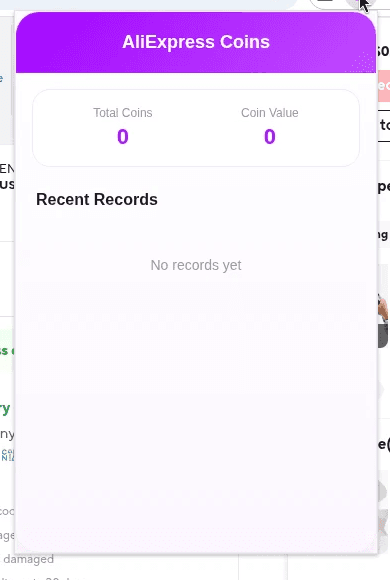
- AliExpress toolbar popup (only when the active tab is AliExpress): AliExpress Coins — Total Coins, Coin Value, Recent Records.
- AliExpress confirm-order checkout: a purple glass panel titled AliExpress Assistant / Smart coupon optimizer, with region tabs, Apply on each code, and Auto Apply Best Coupons.
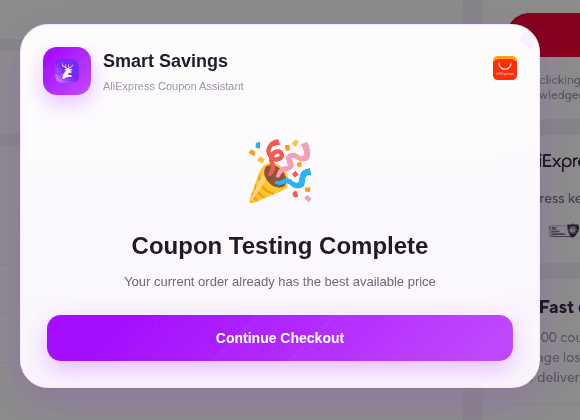
- After Auto Apply: a Smart Savings modal (AliExpress Coupon Assistant) with the testing result and Continue Checkout.
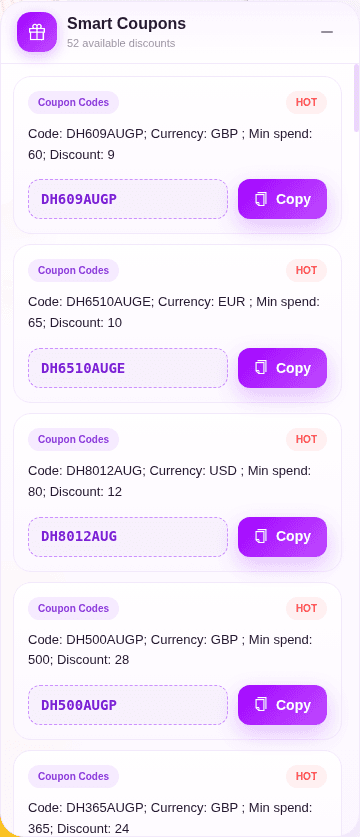
- Supported non-AliExpress sites (for example DHgate): Smart Coupons with a Copy button per code — not Auto Apply.
Step 1: Install ElkTop from the Chrome Web Store
Open the official ElkTop – AliExpress Coupon Finder listing on the Chrome Web Store (extension ID pgeibfelcomlphhgnkihiibnhpadaddc), choose Add to Chrome, and confirm the permissions prompt. Pin the purple elk icon so you can open the toolbar popup when you need it. This guide’s live UI captures are from version 2.1.1 installed that way—not from an unpacked or Developer-mode load.
- Install only from the official Chrome Web Store listing—not a sideloaded zip, Load unpacked build, or lookalike listing.
- Confirm ElkTop appears in your toolbar and is toggled on for the Chrome profile you shop with.
- Keep Chrome updated so content scripts can load on AliExpress and other supported hosts.
Step 2: Shop AliExpress product pages as usual
Search, open listings, compare sellers, and add items the way you always do. ElkTop does not inject a coupon panel onto the product page. Native AliExpress banners—Welcome deal pricing, coins hints, or site coupons—are AliExpress UI, not ElkTop.
- Set ship-to and currency to match how you intend to check out (for US shoppers, that usually means a United States destination).
- Lock in the SKU (color, size, bundle) before you care about coupons—eligibility can follow the variant.
- Ignore the absence of a purple side panel on the listing; coupon tools belong at confirm order.
Step 3: Know what the toolbar popup is (AliExpress Coins)
When the active tab is AliExpress and you click the ElkTop icon, the popup title is AliExpress Coins. It shows Total Coins, Coin Value, and Recent Records (or No records yet). That popup is a coins surface—not the place where you Apply checkout promo codes.
Step 4: Open AliExpress checkout for AliExpress Assistant
Proceed through AliExpress until you reach the confirm-order page (the Summary with Place order). That is where ElkTop mounts AliExpress Assistant. The panel uses the extension’s purple (#a002ff) glass style: header AliExpress Assistant, subtitle Smart coupon optimizer, a hero that explains Auto Apply Best Coupons, region tabs such as Global, United States, and Brazil, coupon cards with discount text, min-order condition, a code chip, and a purple Apply button, plus a full-width Auto Apply Best Coupons footer.
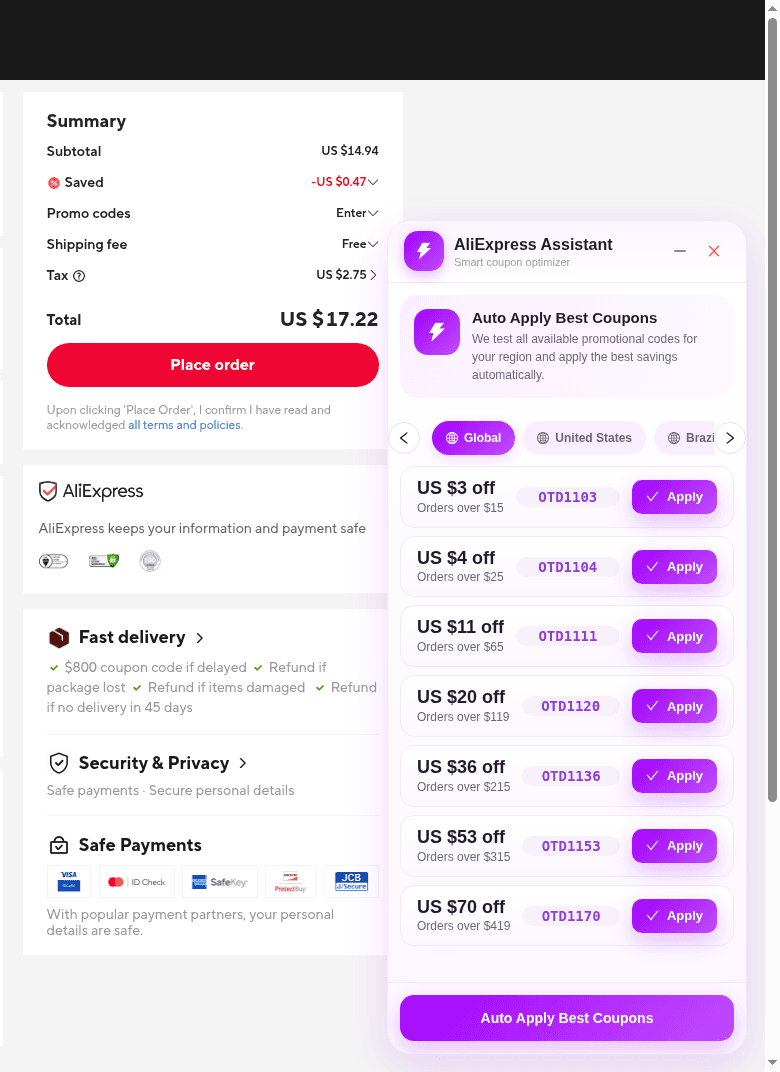
- Pick a region tab that matches how you are shopping (Global was selected in the 2026-11-14 capture).
- To try one code, press Apply on that card so ElkTop can place it in the AliExpress promo-code flow.
- To let ElkTop test eligible codes for the region in sequence, press Auto Apply Best Coupons.
- Codes visible in screenshots (for example OTD1103, OTD1104, OTD1111 and other OTD… Global chips from 2026-11-14) are capture-date examples—not a live guarantee.
Step 5: Read Smart Savings, then check the AliExpress Summary
After Auto Apply finishes, ElkTop can open a Smart Savings modal subtitled AliExpress Coupon Assistant. One outcome is Coupon Testing Complete with Your current order already has the best available price, then a purple Continue Checkout button. In the capture session, the AliExpress Summary already showed a small Saved amount before that result—so “best available” can mean no further code beat what was already on the order.
- Compare Subtotal, Saved, shipping, tax (if shown), and Total on the AliExpress Summary.
- If Saved or Total does not match what you expected, do not pay until you understand why—exclusions, minimums, and stacking rules still apply.
- Continue Checkout closes the ElkTop result modal; it is not a payment instruction. You decide whether to finish on AliExpress.
Supported sites like DHgate: Smart Coupons + Copy
On matched non-AliExpress sites such as DHgate, ElkTop shows Smart Coupons with a count like “52 available discounts.” Each Coupon Codes card includes conditions, a code chip, and a purple Copy button. You paste the code into the merchant’s own field. There is no Auto Apply Best Coupons on that panel—do not expect AliExpress-style Apply there.
Checklist before every AliExpress order
- ElkTop is installed and enabled on the Chrome profile you are using.
- You shopped the product page without waiting for a non-existent coupon overlay.
- You opened confirm order and used Apply or Auto Apply Best Coupons from AliExpress Assistant.
- You read Smart Savings (when it appears) and then the AliExpress Summary Saved / Total lines.
- You are comfortable with shipping timing and any fees shown—without treating this guide as a prompt to place an order.
Used this way, ElkTop is a checkout companion: purple Apply / Auto Apply on AliExpress confirm order, Coins in the toolbar popup, and Copy on other supported stores. You still choose the product, seller, and whether the final total is worth paying.
Install from the Chrome Web Store, run one practice cart to the confirm-order page, try Auto Apply Best Coupons, and practice reading the Summary. That single end-to-end pass teaches more than any static code list.
Install ElkTop
Free on the Chrome Web Store—find and apply AliExpress coupons while you shop.